
Troubleshooting
Common Issues
"The URL is not supported"
- Make sure you're using the full URL (including
https://) - Check that the URL matches one of the supported platforms
- Some URLs need to be pasted into the specific platform page (e.g., YouTube Playlist URLs into the YouTube Playlist page)
Download Fails
- Check your internet connection
- Try updating the app (XGetter auto-updates its download engine on launch)
- Some platforms rate-limit downloads — wait a moment and retry
- For age-restricted or private content, set cookies
"Video unavailable" or "Private video"
- The video may have been deleted or made private
- For private videos, upgrade to Pro and set cookies
- For age-restricted YouTube videos, set YouTube cookies
Windows SmartScreen Warning
This is normal for apps without an expensive code signing certificate. Click "More info" → "Run anyway".
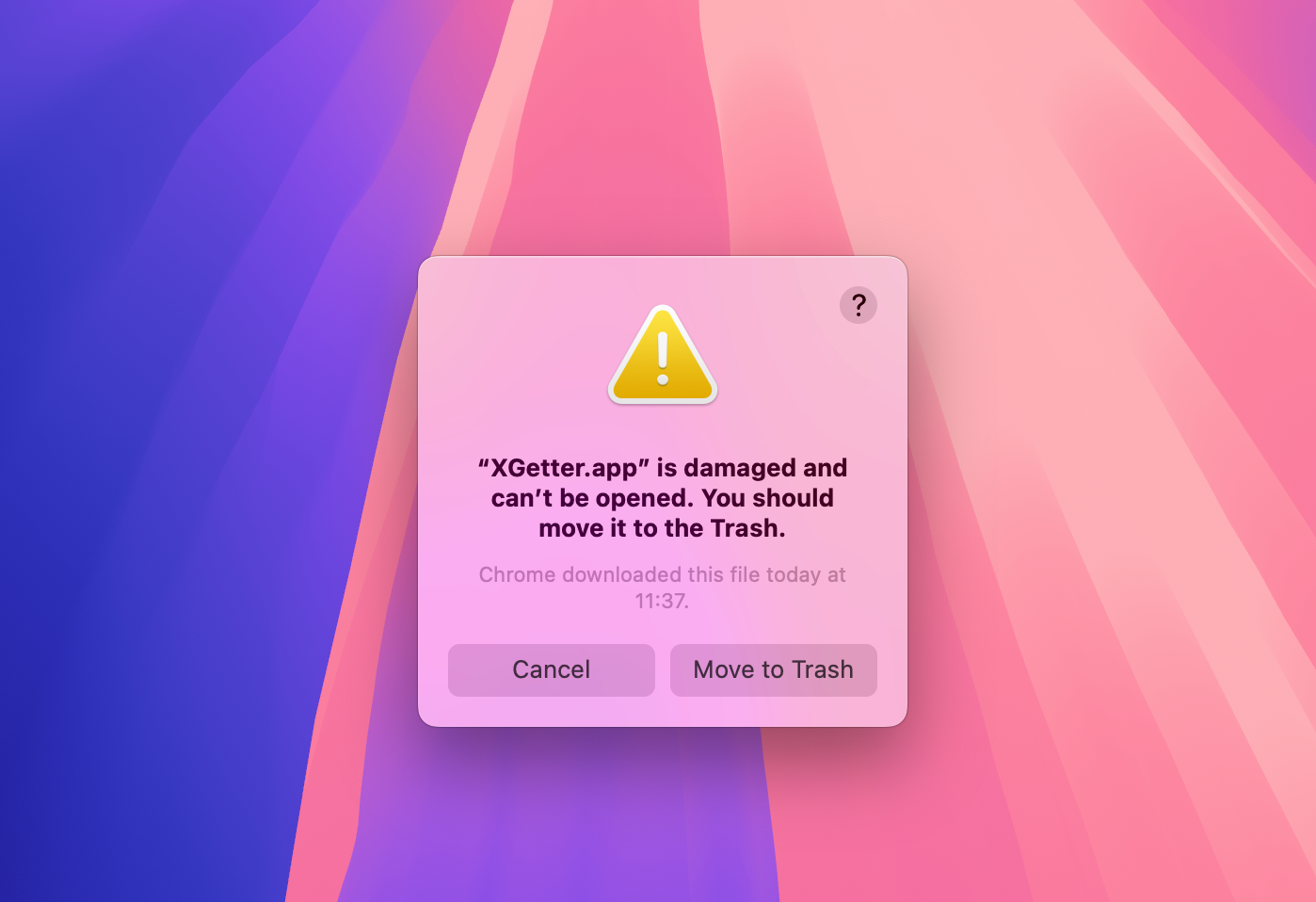
macOS "App is damaged" Error
macOS can block apps downloaded outside the App Store by marking them with extended attributes. The app is not actually damaged; clearing those attributes lets it open.
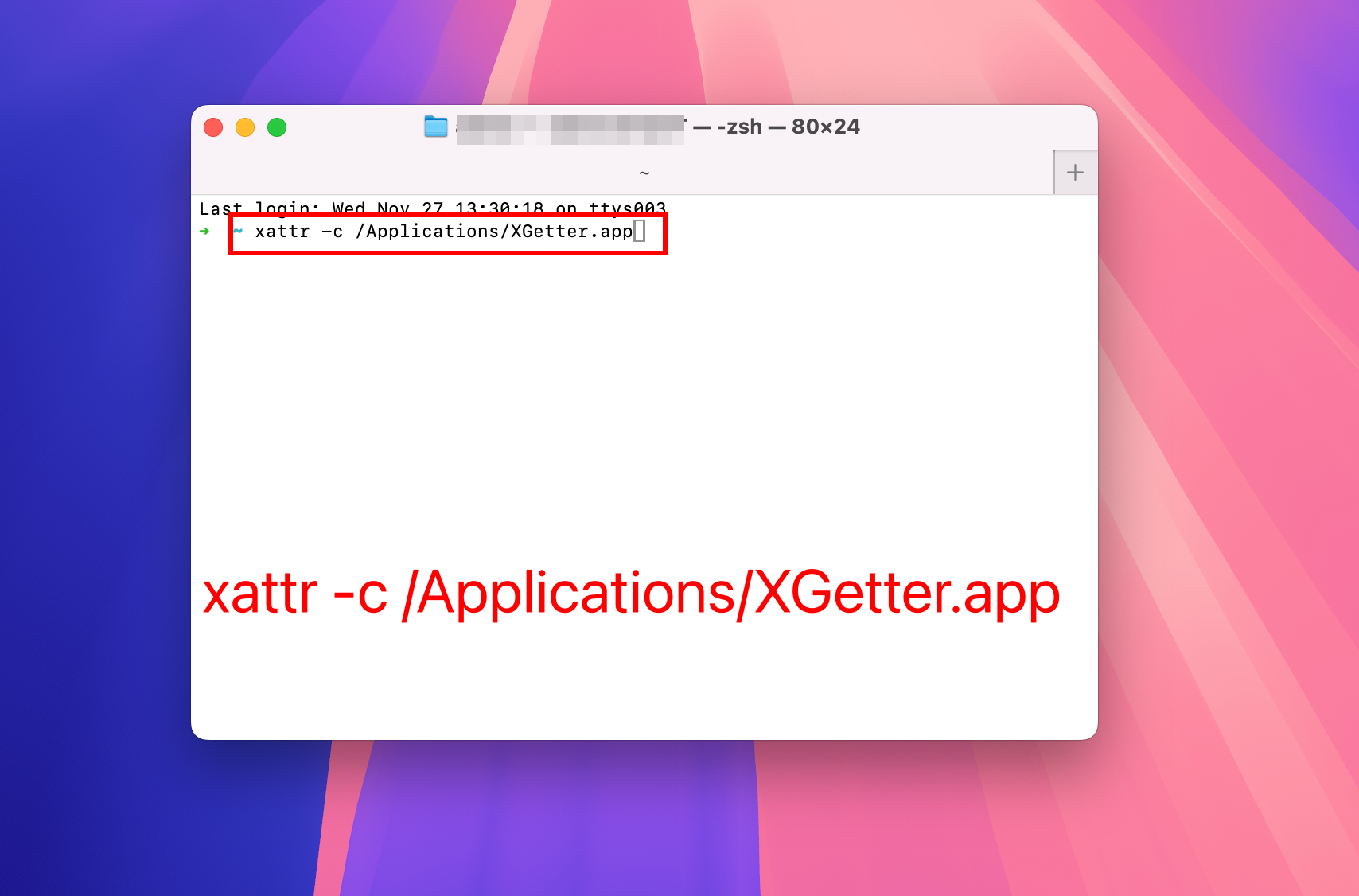
Open Terminal (press
Command + Space, type Terminal, press Return).Run:
bashxattr -cr /Applications/XGetter.appIf XGetter is not in Applications, replace the path with where it is.
Open XGetter again.
Only do this for XGetter downloaded from xgetter.com or the official GitHub releases. You can also right-click XGetter, choose Open, and confirm.
Download Stuck at 0%
- Check if your firewall/antivirus is blocking XGetter
- Try a different video to test
- Restart the app
Format Not Available
Some formats shown may not be downloadable due to platform restrictions. Try "Best Video" which always selects the best available option.